
⌘K
Getting Started
From creating your account to setting up your store, this guide walks you through the basics of getting started with Uniobject.
Create your account
Set up your Uniobject account with an email and password.
- Open the sign-up page and enter your name, email, and a password. Your password needs at least 8 characters, including an uppercase letter, a lowercase letter, a number, and a special character. A checklist ticks off each rule as you type.
- Check the box to agree to the Terms of Service and Privacy Policy, then submit.
- If this email address is already registered, Uniobject guides you straight to sign in or reset your password.
- Enter the 6-digit verification code sent to your email. It submits automatically once complete. You can resend it after a 60-second countdown.
- Once your email is verified, you're signed in and taken to create your store. If you signed up from a referral link, the referral code is already filled in. If you signed up from a team invitation, you join that store directly and don't need to create one.
- Signing up with an email and password requires email verification: you aren't signed in until you verify, and the code expires after 10 minutes.
- If you're already signed in, a screen lets you continue to the POS or sign out.
- Once you're signed in, we highly recommend adding a passkey in Settings → Account so you can sign in with Face ID, Touch ID, or Windows Hello. It's faster and more secure than typing a password. See Manage passkeys.
Sign in
Sign in with your email and password, or sign in quickly with a passkey.
- Open the sign-in page and enter your email and password. You can show or hide your password. After you submit, the POS or the page you were headed to opens.
- Or tap Sign in with a passkey and approve with your device using Face ID, Touch ID, or Windows Hello to reach the same destination. On supporting browsers, picking your email from the field's suggestions can complete passkey sign-in on its own, with no button tap.
- Your session stays signed in for 7 days.
- We highly recommend signing in with a passkey: it's faster than a password and resistant to phishing. You can add one anytime in Settings → Account.
- If you cancel your device's passkey prompt, sign-in simply stops without an error message.
Reset your password
Request a reset link by email and set a new password.
- On the sign-in page, select "Forgot password?" and enter your email. A reset link is sent to you.
- For your privacy, the same confirmation screen appears whether or not the email address is registered.
- Open the link in the email, then enter your new password and enter it again to confirm. A checklist ticks off each password rule as you type, and a warning appears right away if the two entries don't match.
- After the password is updated, a success screen links you back to sign in.
- If the reset link has expired or is invalid, a separate screen lets you request a new one.
Create your store
Set up your first store and get started on the Free plan.
- Enter a store name of 1 to 50 characters.
- Choose your store's currency, time zone, and sales tax: either Charge tax with a rate from 0 to 100 percent, or No tax. All three are required. You choose the currency and tax yourself, and the time zone is pre-filled from your browser.
- Optionally enter a referral code and tap "Apply". A green check and discount badge confirm a valid code, and you see a specific message for an invalid code, your own code, an inactive referrer, or a code you have already used.
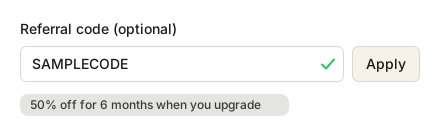
- Tap "Create store".
- You become the Owner of the new store, which always starts on the Free plan. A default location named after your store is set up automatically.
- Your language is set automatically from your browser settings, and the time zone is pre-filled. Once the store is created, the time zone stays fixed, and you can change it later in Settings under Preferences.
- You don't need to choose a plan when creating your store. You can upgrade in Settings later. See Upgrade from Free and start a subscription.
- If a referral code was applied, the matching discount applies when you upgrade.
- If you already belong to a store, you are taken straight to the POS. This setup is only for people without a store.
Your first-product checklist
A short checklist on the POS guides new store Owners and Admins to their first product.
- Open the POS. Until your store has a product, a checklist card appears above the product grid. You can keep using the whole app while it shows.
- Tap Create product categories. Settings opens at the Categories card, for example Earrings or Jewelry.
- Tap Create option groups and their options. Settings opens at the Option Groups card, for example Size: Small, Medium, Large.
- Tap Add a product to go to the Products screen. This step unlocks once the first two are done, and you can tap Skip if you'd rather add products later.
- Only Owners and Admins of a store with no products see the checklist. Staff never see it.
- The checklist is finished once your store has a product, or once the first two steps are done and you skip the third. A burst of confetti marks the moment, then the card folds away.
- Stock tracking is optional and off by default. A note under the last step links to the Stock Management setting if you want to turn it on.
- On phones and tablets, the card also suggests adding the app to your home screen and shows the steps for your device. This tip isn't a step and doesn't affect whether the checklist is finished.
- You can dismiss the card. Once it has gone away or been dismissed on a device, it doesn't come back on that device for that store. A device that first opens a store that already has products never shows it.
- The card is hidden while you use the Time Machine.
Accept a team invitation
Join a store you have been invited to as an Admin or Staff member.
- Open the link in your invitation email.
- If you're not signed in, sign in or create an account with the email address that received the invitation. Afterward, you're taken back to the invitation page.
- Once you are signed in, the invitation is accepted automatically and the store becomes your active store.
- A celebration screen shows the store name, then takes you to the POS, automatically after 5 seconds, or via the button.
- You join with the role set in your invitation, either Admin or Staff.
- Invitations expire after 7 days.
- You must be signed in with the email address the invitation was sent to. If you are signed in with a different account, a screen lets you sign out and switch accounts.
- Expired or canceled invitations show a not-found screen.
Install as an app
Add Uniobject to your phone's home screen or your computer's desktop to open it quickly, just like an app.
- First connect to the internet, then open Uniobject in your browser.
- On a phone or tablet: on iPhone or iPad, open Uniobject in Safari, tap the Share button at the bottom of the screen, scroll down and tap "Add to Home Screen", then tap "Add". On Android, open Uniobject in Chrome, tap the three-dot menu at the top right, choose "Add to Home screen" or "Install app", then confirm with "Install".
- On a computer: in Chrome or Edge, click the install icon at the right end of the address bar, or open the browser menu and choose "Install Uniobject", then confirm. In Safari on a Mac, choose "Add to Dock" from the File menu. This requires macOS Sonoma or later.
- Launch Uniobject from your home screen or desktop.
- Uniobject never shows an install prompt on its own. On phones and tablets, the first-product checklist includes a tip with the steps for your device.